Start with what you have
Your screen
Your way to sell
Keep a desktop at the counter. Take a tablet onto the shop floor. Put a till in your pocket. CE POS works across desktop, Android and iOS.
A tablet for the counter. A phone for wherever the customer is. Connect a scanner over USB or Bluetooth, and a receipt printer over USB, Bluetooth, Wi-Fi or Ethernet.
- Android tablets and phones
- USB, Bluetooth, Wi-Fi and Ethernet accessories
- A flexible setup for your shop floor
Device and accessory compatibility depends on your setup. Talk to us about the devices you plan to use.
Bring your own hardware
Scanner, printer, drawer
connected your way
You have the screen. Now add the parts that finish the sale: scan an item, print a receipt, open the drawer. Connect them over USB, Bluetooth, Wi-Fi or Ethernet.
Four ways to connect
Connect scanners and printers wirelessly and keep the counter clear of cables. Works on every platform: desktop browser, Android and iOS.
Barcode scanner
Connect over USB or Bluetooth and it types like a keyboard: scan an item and it lands in the sale with the right SKU, variant and price.
Receipt printer
Connect over USB, Bluetooth, Wi-Fi or Ethernet and print at the counter, so every customer leaves with a record of the sale.
Cash drawer
Opens through the receipt printer after a cash sale. No separate connection to set up.
Desktop browser: Bluetooth. Android app: USB, Bluetooth, Wi-Fi and Ethernet. iOS app: Bluetooth, Wi-Fi and Ethernet. The cash drawer opens through the receipt printer.
Explore POS docsFollow one sale
From first scan
to see you again
The products, the offer, the way home. Follow one sale through a connected checkout.
Find the right item
Scan a barcode or browse your catalogue. Add the exact product and quantity to the sale.
Illustrative flow and prices. Payment methods and fulfilment options depend on your store configuration.
Keep it all connected
In store and online
One engine
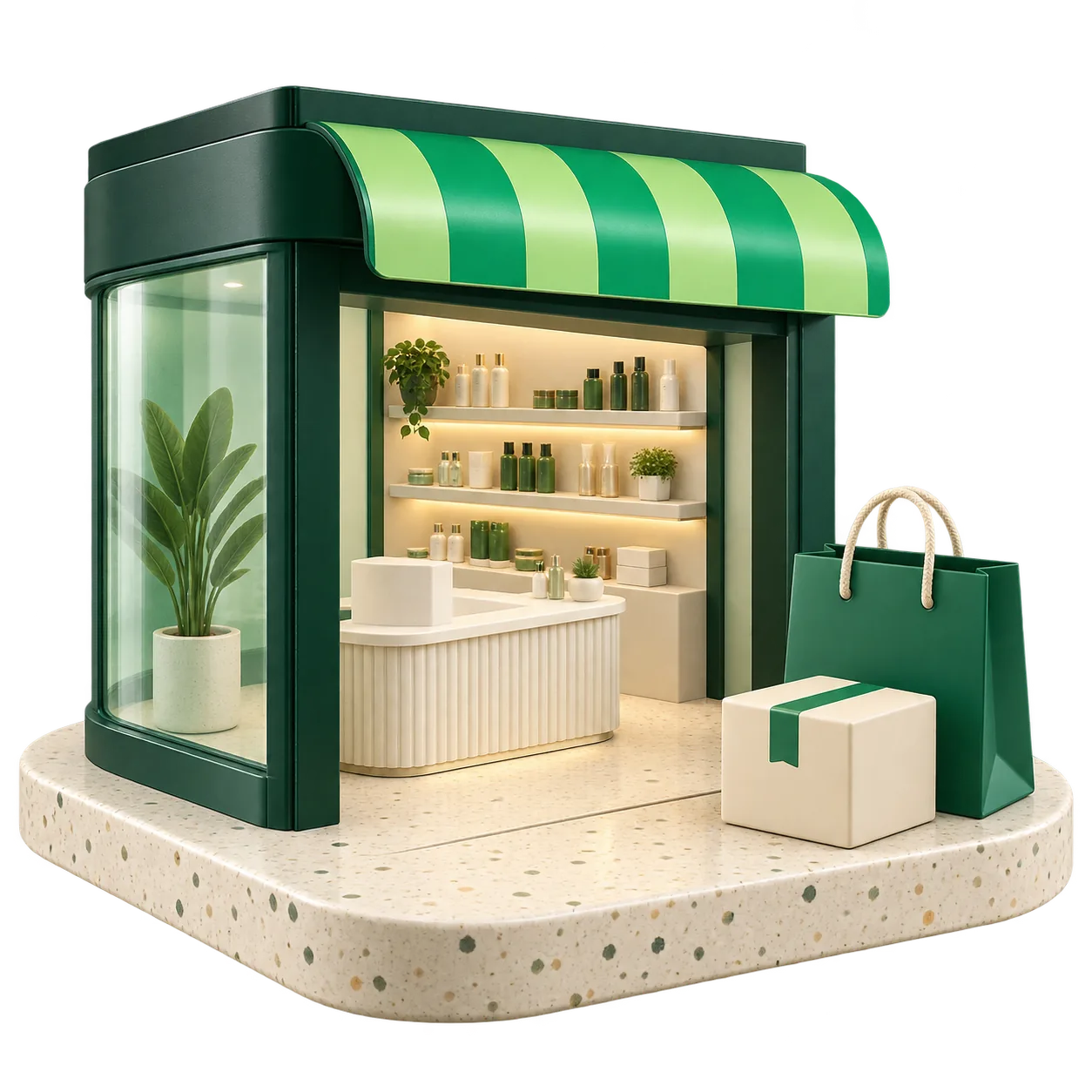
The counter belongs to the same commerce system as your online store. Bring your catalogue, customers, offers and orders together, wherever a sale begins.
Built on the POS API
Explore the POS docsThe POS app, the POS API and the @commercengine/pos SDK are all available today. Talk to us about your store’s setup and we’ll help you plan the rollout.
The practical details
Before you open the first till
Straight answers for the retail team planning the rollout and the developers building the counter.
01What hardware do we need to buy?
None, in most cases. CE POS runs in the browser on a desktop or laptop, and as native apps on Android and iOS — tablets and phones on both. If the shop already has a back-office PC, a tablet on a stand or a phone in a pocket, that is the till. There is no proprietary hardware to buy and nothing to wait on.
Open CE POS (opens in new tab)02Which accessories can we connect, and how?
Barcode scanners, receipt printers and cash drawers. Receipt printers (ESC/POS) connect over USB, Bluetooth, Wi-Fi or Ethernet. Barcode scanners connect over USB or Bluetooth and type into the sale like a keyboard. The cash drawer needs no connection of its own: it opens through the receipt printer’s drawer port. USB is Android only; the desktop browser connects over Bluetooth, and the iOS app over Bluetooth, Wi-Fi or Ethernet.
See the connection table03How does a device become a till?
Sign in, and it is one. Open CE POS on the device, sign in with your email, phone or WhatsApp and the one-time code, choosing the store location you are working from. That device is the till for that store until you sign out. Sign in on a different device tomorrow and that one is the till instead.
Read the POS overview (opens in new tab)04How does POS authentication differ from the storefront?
POS runs on its own authentication model: staff sessions tied to a store location, not storefront customer sessions. Storefront API keys and customer tokens must not be reused against POS endpoints. Staff sign in with email, phone or WhatsApp and verify an OTP.
Read the POS API reference (opens in new tab)05Is it the same catalogue and customer as the storefront?
Yes — one catalogue, one customer record, one promotion engine. Prices, media, categories and variants come from the same source the storefront reads, so there is no export, no nightly sync and no second set of prices to keep honest. Attach a customer to an in-store cart and their details and addresses come with them.
See Catalog & Inventory06Can customers collect in store, or have an in-store purchase delivered?
Yes. Any location can be a store, a warehouse or both. At the till, staff check delivery and click-and-collect options for the cart and pincode, take payment, and the order either waits at the counter for collection or ships from the location that has the stock.
See click and collect on Shipping07Do loyalty points and store credit work at the till?
Yes. Loyalty points and credit balance can be redeemed against an in-store cart and removed again, using the same balances the storefront reads. Coupons can be listed, evaluated, applied and removed, and automatic promotions are evaluated against the cart.
See the POS API reference (opens in new tab)08Which payment methods can an in-store order take?
Cash at the counter, or card and UPI with the customer scanning a QR code — through the payment methods and gateway configured for your store. The payment status is recorded on the order, so staff can confirm it before handing over the receipt.
Create a POS order (opens in new tab)09Which plans include POS?
Every paid plan. Startup covers up to two shop locations, and Growth and Enterprise cover as many as you open. The Free plan sells online only.
Compare plans010Can we build our own counter instead?
Yes. Everything CE POS does sits on the public POS API, available as the @commercengine/pos TypeScript SDK — generated from the dedicated POS OpenAPI spec with the same tooling as the storefront SDK. Teams with an existing in-store application can build against it directly rather than adopting the app.
@commercengine/pos on npm (opens in new tab)Rolling out in store and want a second pair of eyes? Talk to us about POS (opens in new tab)Browse the POS API (opens in new tab)
Your hardware a new way to sell
Bring the devices you already know. Connect your counter to Commerce Engine and find the right POS setup for your store.